
The most common types of payments to directors are the payments of directors remuneration, i.e. directors salary. Additionally, directors would occasionally pay for company expenses/supplier purchases. Where a director pays off trade creditors/suppliers for invoices issued to the business, the following records:
- The Director Paying Off The Supplier
- The Reduction Of The Amount Owed To The Supplier
- The Amount Owing To The Director By The Business
Bank > Payments
- Bank Account- In the bottom right-hand corner select the account making payment. Select the Director Account assigned to the Director who made the expense payment.
- Date- Enter the date the expense is incurred.
- Reference- Enter an appropriate reference.
- Supplier/Payee Name- If paying off an actual purchase invoice issued to the company, then select the Supplier from whom the invoice is received.
- Nominal Account- This will default to Trade Creditors and cannot be amended.
- Amount- Enter the exact amount of the payment.
This records the payment to the supplier, reducing the amount the business owes the supplier as it has been paid by the director. This will also create a balance owing to the director on his assigned Directors Account. To view this balance simply go to reports> user-defined reports> and run the report selecting the director account.
Where A Director Pays Expenses (Not Invoices) On Behalf Of The Business
Bank> Payments
- Bank Account- In the bottom right-hand corner select the account making payment. Select the Director Account assigned to the Director who made the expense payment.
- Date- Enter the date the expense is incurred.
- Reference- Enter an appropriate reference.
- Supplier/Payee Name- Select a Payee from the existing list (F2) or type the first letter of the Payee name, and use the arrow down key to scroll through the existing Payee names. To setup a new Payee simply type the new Payee name. The program will recognise the new name does not already exist and prompt you to specify if it is a new “Supplier” or “Other”, and select “Other” to add the new name to the Payee list.
- Nominal Account- Choose the relevant expense account to which the expense paid by the Director on behalf of the business relates.
- Amount- Enter the amount per the cheque or per bank statement in the case of Direct Debits/Standing Orders. This will always be the GROSS amount when VAT is involved in the transaction.
- VAT- If applicable a VAT rate can be attached to the amount entered which will record the VAT reclaimable from the Revenue through to the VAT account and VAT report. While within the amount box use the arrow keys to scroll through the VAT rates available to capture the VAT on any payments for which you may reclaim VAT from the Revenue and for which the VAT was not previously captured. The VAT element will flow through to the VAT report to be included within the Normal VAT Report for the period.
A subcontractor no longer charges VAT to a Principal Contractor, where the charge on the invoice relates to a service subject to Relevant Contracts Tax in the Construction Industry. Instead, the Principal Contractor is responsible for calculating the VAT on the amount charged by the Subcontractor and paying this directly to the Revenue through his/ her VAT Return.
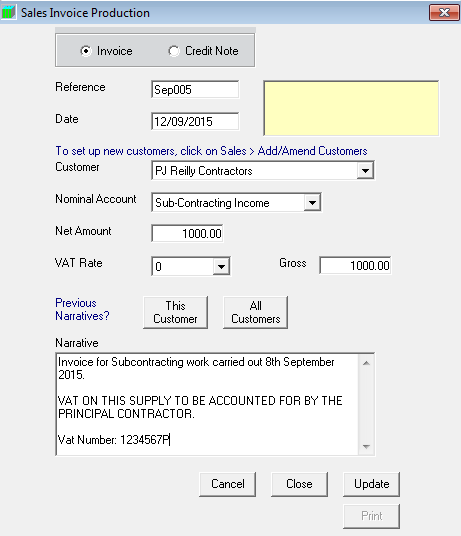
To Raise an Invoice for a Principal Contractor:
Sales> Invoice Production> Invoice/Credit Note Entry
- Reference - Enter the relevant sales invoice reference
- Date - Enter the date of the invoice
- Customer Name - Select/ Set up the Principal Contractor
- Nominal Account - Select “Sub-Contracting Income” as the Nominal Account
- Amount - Enter the invoice amount exclusive of any VAT
- VAT - Attach the 0% VAT rate by using the arrow up and down keys
- Narrative - As well as any narrative of your choice, the invoice must include the statement
Note: VAT on this supply is to be accounted for by the principal subcontractor. The invoice must also include your VAT-registered number.
 |
With agreement from both parties, the Principal Contractor can raise the invoice themselves on behalf of the Subcontractor. Should this be the case, the transaction will still need to be entered in Thesaurus Accounts, as above, or through the Sales > Batch Entry screen.
Comments
0 comments
Please sign in to leave a comment.