
A direct email utility is available in Thesaurus Accounts 2018 to facilitate the emailing of invoices and credit notes to customers. To use this facility, you must first enter the email addresses of your customers, as well as your company email address.
Entering Customer Email Addresses
To enter customer email addresses, go to Sales > Add/Amend Customers:
- Select the customer from the listing
- Within the Fax or Email field, enter the email address of the invoice recipient
- Click Update to save the change
Entering the Company Email Address
To enter your company email address, go to Setup > Company Details:
- Within the Email field, enter a relevant company email address - this will be used as the CC email address when emailing invoices, as well as being the 'reply to' email address for customers)
- Click Update to save the change
Emailing Invoices/Credit Notes
As soon as a Sales Invoice or Credit Note is posted through any of the Invoice Production screens, they will be available for emailing.
- Go to Sales > Invoice Production > Invoice/Cr Note Printing/Emailing
- Each Sales Invoice/Credit Note entered is listed in the sequence in which they were entered.
Editing a Narrative
Before emailing, should you wish to edit the narrative of an invoice/credit note entered through the Invoice/Credit Note entry screen, double-click on the narrative and amend as required.
Note: This option is not available to Product Invoice entries or Multi VAT Invoice Entries
Index Number
- An index number is automatically assigned to each transaction, as a sequential entry number. This does not print on the actual invoice.
- To select a single invoice/credit note for emailing, simply double-click on the index number/invoice reference of the entry.
- To select multiple invoices/credit notes for emailing, enter the index number of the first invoice/credit note you wish to email in the From Index field and enter the index number of the last invoice/credit note for emailing in the To Index field.
Preview
Should you wish to preview the selected invoices/credit notes on the screen before emailing, select the Preview button. Continue clicking Next to view each invoice/credit note selected.
Email
When ready to email the invoices/credit notes, select Email (Direct)
- Click Yes when asked if Do you want to Continue?
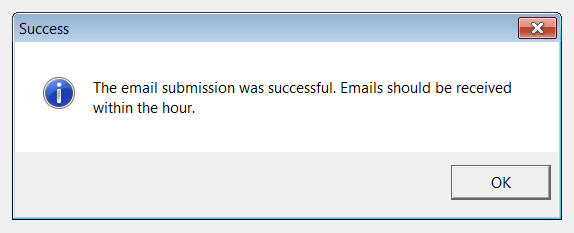
Note: A confirmation message will confirm that the email submission was successful. Please allow an hour for recipients to receive their emails.
|
|
Comments
0 comments
Please sign in to leave a comment.