
An Accrual is taking into account an expense, which has been incurred within the relevant accounting period, but not invoiced until the subsequent accounting period.
- Navigate: Navigate to Accounts Production > Accruals. An accrual is taking account of an expense incurred therefore only the expense accounts are listed on this screen.
- Date: Enter the date the accrual is effective, normally the end of the accounting period.
- Account Name: Select the appropriate expense account. Enter the amount you are accruing opposite the Account Name.
- Post Entries: Click on Post Entries to process and save the entry.
Complete Accrual Entry:
| Debit | Expense Account | Profit and Loss Account |
| Credit | Accrual Account | Balance Sheet Account |
Upon selecting Post Entry the following message appears to confirm the journal has been posted. Select OK.
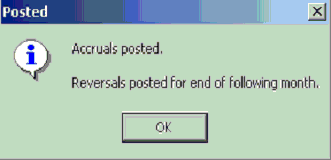 |
Note: The message indicates that the REVERSAL of the accrual has automatically been posted on the last day of the following month. To view the completed accrual journal entry go to the daybook.
- Navigate: Navigate to File > Day Book And Corrections
- Date Range: Enter the relevant date range (remember to include the reversal date which is at the end of the following month). The automatic reversal journal can be viewed here also.
 |
Note: The deletion of the accrual through the day book will not automatically delete the reversal entry - this automatically generated reversal entry will need to be manually deleted also. In addition, the amendment of the original accrual amount through the daybook (using the f4 function) will not automatically amend the reversal amount - this will need to be manually amended also if required.
Comments
0 comments
Please sign in to leave a comment.